> ## Documentation Index
> Fetch the complete documentation index at: https://docs.shieldcyber.io/llms.txt
> Use this file to discover all available pages before exploring further.

# Shield Platform

> Welcome to Shield Cyber's official documentation site for the Shield Continuous Threat and Exposure Management platform.

<video loop autoPlay controls className="w-full aspect-video" src="https://mintcdn.com/shieldcyber/uc2L3wmNyUpjzvPM/images/shield-animation.mp4?fit=max&auto=format&n=uc2L3wmNyUpjzvPM&q=85&s=3d15be0e50c0a36b9ebd9d4576297c8a" data-path="images/shield-animation.mp4" />

Shield is a commercial exposure management platform that proactively identifies risks within an organization’s attack surface, internal network, and identity landscape. Shield will perform automated scanning and auditing across the various levels of a company’s attack surface. The platform will capture risk trends over time, as well as provide guidance and solutions for various remediation actions based on what is discovered. Shield will also allow organizations to track and monitor aspects of the external, internal, and identity objects that make up their overall network.

## Quick Start

### Platform Access

<AccordionGroup>
  <Accordion title="Navigate to the Shield platform" icon="browser">
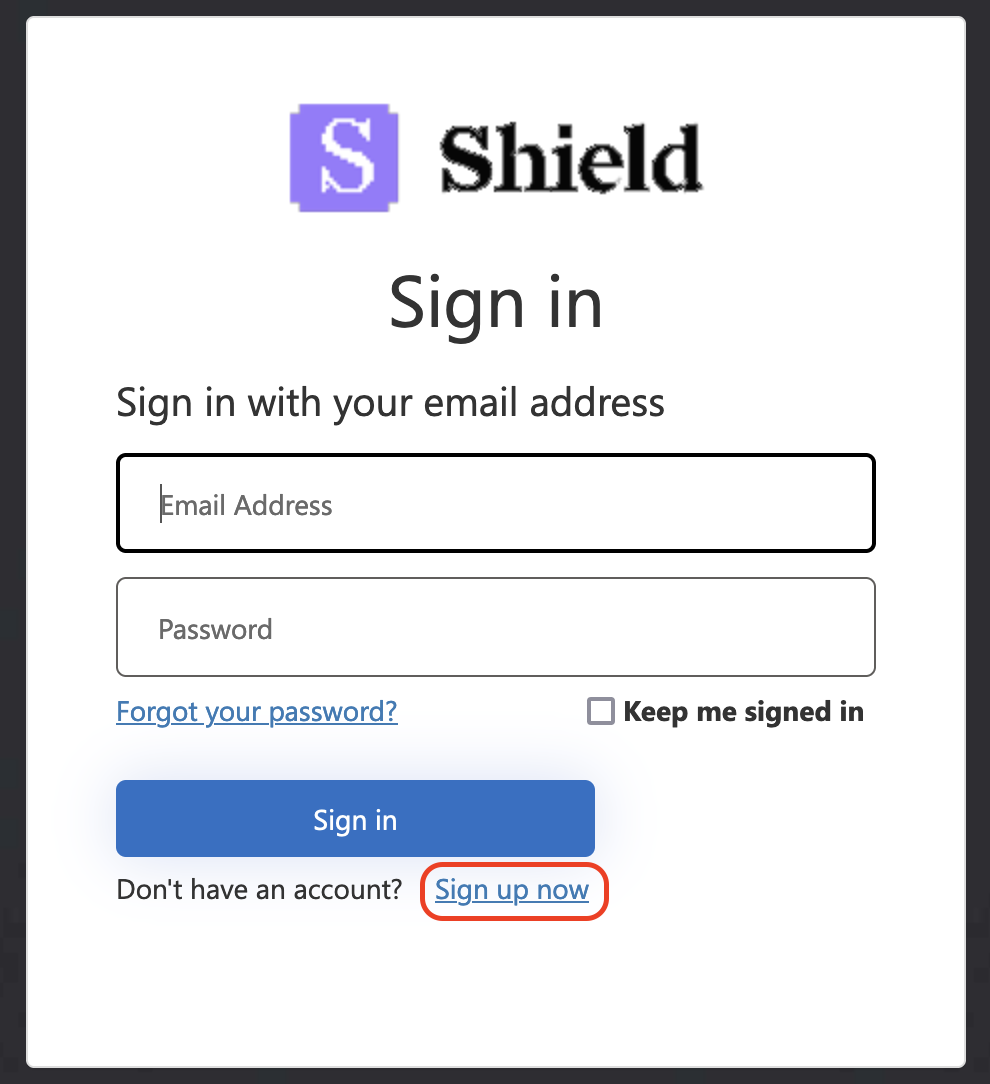
    Navigate to [https://platform.shieldcyber.io](https://platform.shieldcyber.io) and click "Sign up now".
    <p align="center">
      <img src="https://mintcdn.com/shieldcyber/uc2L3wmNyUpjzvPM/images/user-sign-up.png?fit=max&auto=format&n=uc2L3wmNyUpjzvPM&q=85&s=db9522f31a9c9ac84336a2cdee387609" alt="User Sign Up" width="200" data-path="images/user-sign-up.png" />
    </p>
  </Accordion>

  <Accordion title="Create your Shield account" icon="lock">
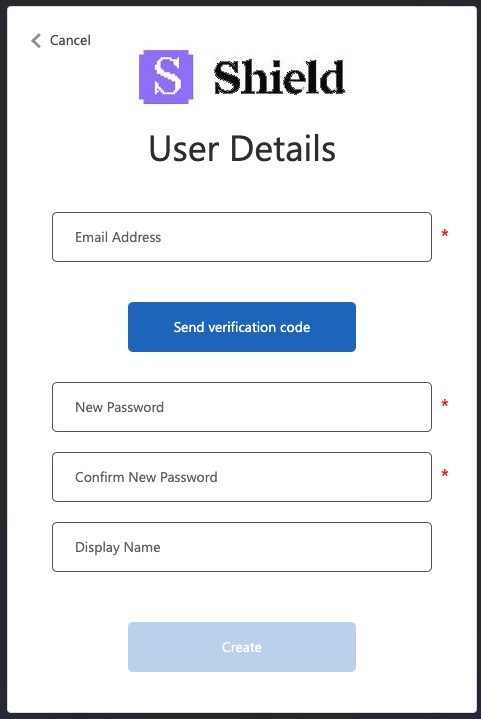
    Enter and confirm your email address, create a password, display name, and set up multi-factor authentication (MFA).
    <p align="center">
      <img src="https://mintcdn.com/shieldcyber/uc2L3wmNyUpjzvPM/images/user-details.png?fit=max&auto=format&n=uc2L3wmNyUpjzvPM&q=85&s=70c4b702e7c6705ceb35949c089b9126" alt="User Details" width="200" data-path="images/user-details.png" />
    </p>
  </Accordion>
</AccordionGroup>

### Scanning

<AccordionGroup>
  <Accordion title="Setup your subscriptions" icon="folder-plus">
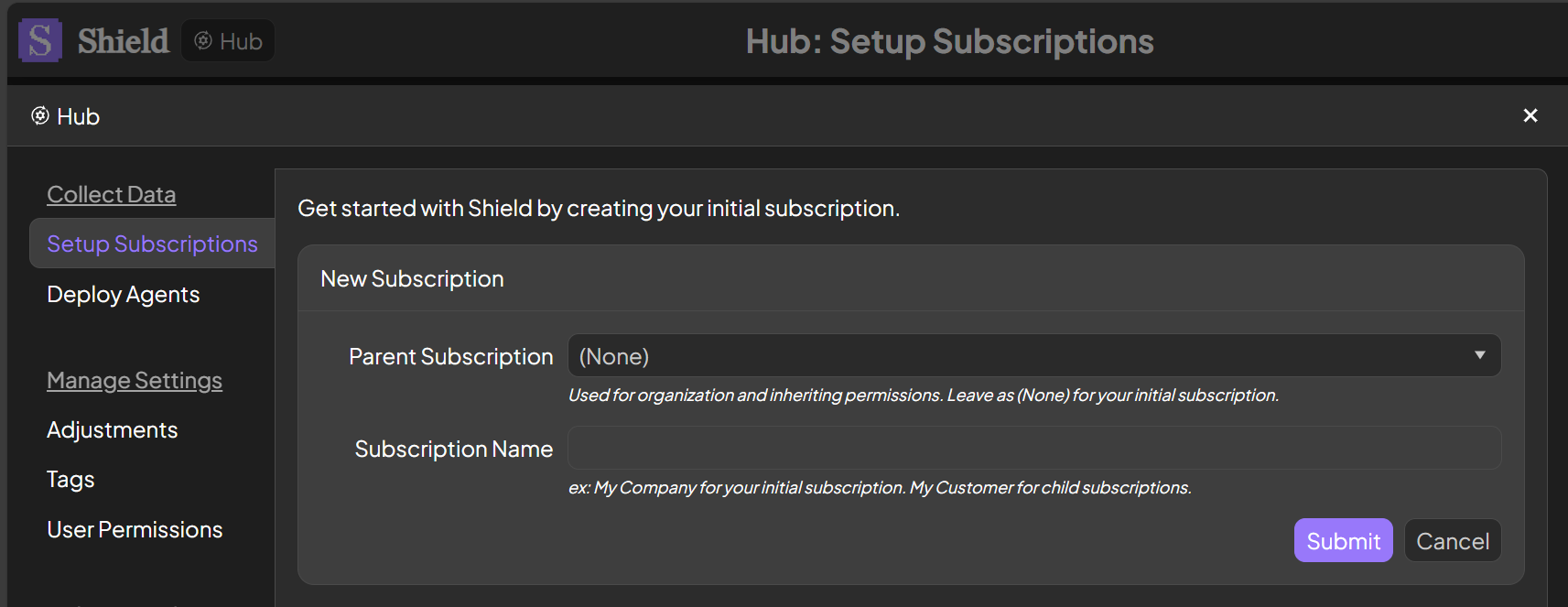
    Open the Hub in the top left corner to setup your subscriptions.  Enter your company name for your initial subscription.  Create additional subscriptions for your clients using that initial subscription as the parent.
    <p align="center">
      <img src="https://mintcdn.com/shieldcyber/uc2L3wmNyUpjzvPM/images/setup-subscriptions-add.png?fit=max&auto=format&n=uc2L3wmNyUpjzvPM&q=85&s=689bab53b2582653b0ac5dd6f0cb4d81" alt="Setup Subscriptions Add" width="350" data-path="images/setup-subscriptions-add.png" />
    </p>
  </Accordion>

  <Accordion title="Deploy agents" icon="laptop">
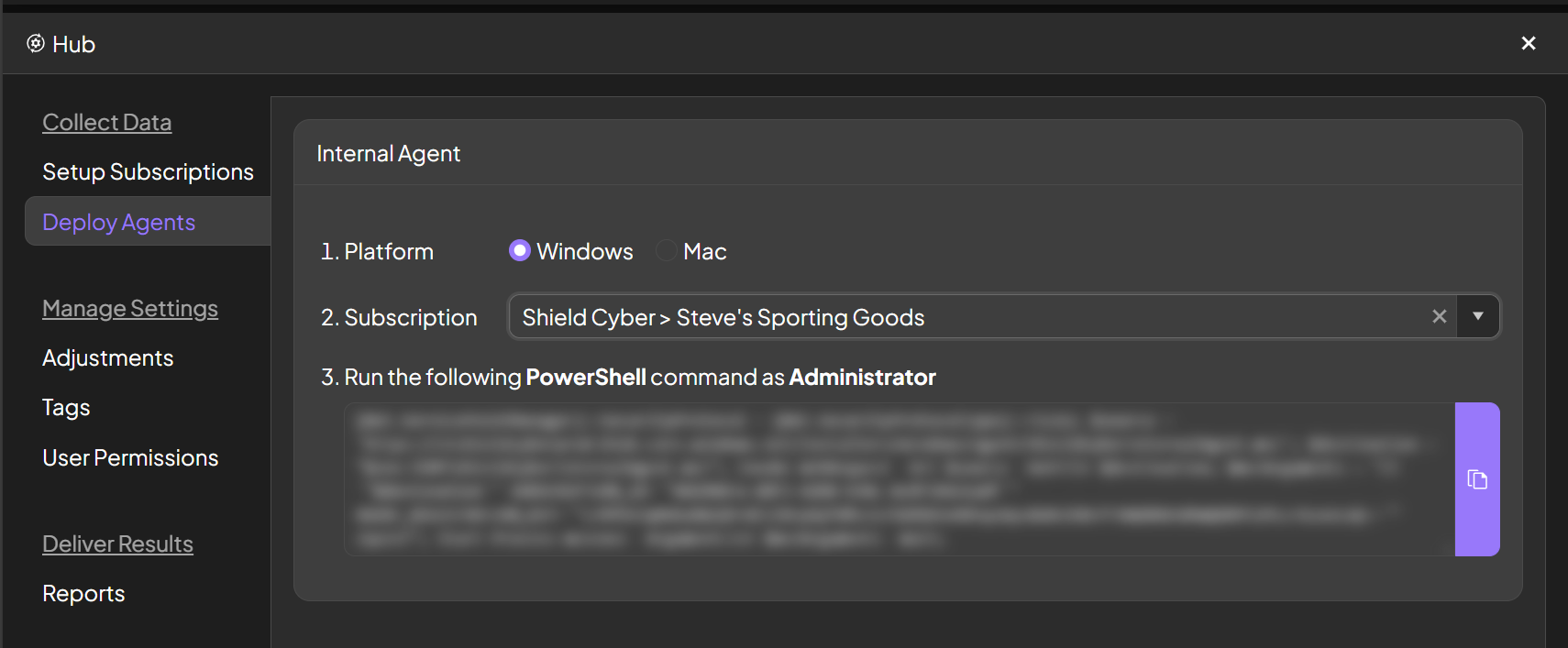
    To perform agent based scanning, navigate to the [Deploy Agents](https://platform.shieldcyber.io/v2/dashboard?hub=deploy-agents) page.  Select the platform and subscription and copy the script out of the platform.  This script can then be deployed to managed hosts with your preferred remote administration tool or technique.
    <p align="center">
      <img src="https://mintcdn.com/shieldcyber/uc2L3wmNyUpjzvPM/images/deploy-agents.png?fit=max&auto=format&n=uc2L3wmNyUpjzvPM&q=85&s=866cbf830328545e3706a1ff62b278a5" alt="Deploy Agents" width="400" data-path="images/deploy-agents.png" />
    </p>
  </Accordion>
</AccordionGroup>
